How to Connect Gmail, Google Drive, and Google Calendar to IrisGo
Important details rarely stay in one place. A request arrives in Gmail, the supporting document sits in Google Drive, and the deadline appears in Google Calendar. Finding the full picture often means opening all three.
Connecting your Google account to IrisGo gives it access to that working context. After a one-time setup, you can search emails, locate files, review your schedule, and follow a task across Google Workspace from the same conversation.
Can IrisGo connect to Google Workspace?
Yes. You can connect Gmail, Google Drive, and Google Calendar through the IrisGo desktop app.
What IrisGo can access depends on the account and permissions selected during setup. Personal accounts can be connected directly. A school or company may restrict third-party access on managed accounts, in which case an administrator must approve the connection.
Before you connect
Install the IrisGo desktop app on your Mac and sign in to the Google Workspace apps you use (Gmail, Google Drive, and/or Google Calendar). This ensures you’re capturing all the information you need.
For example, if your project lives in your Google Drive but related emails and meetings live in your Gmail inbox and Google Calendar, connecting only one application may leave out crucial context.
How to connect Google Workspace to IrisGo
The entire setup takes place inside the IrisGo desktop app. There is no need to configure a script or manage an OAuth token yourself.
Step 1: Open IrisGo
Launch the desktop app and sign in to your IrisGo account.
Step 2: Find the connection settings
Click the gear icon beside your profile in the bottom-left corner to open “Settings.” Then select “Integrations” from the left sidebar.
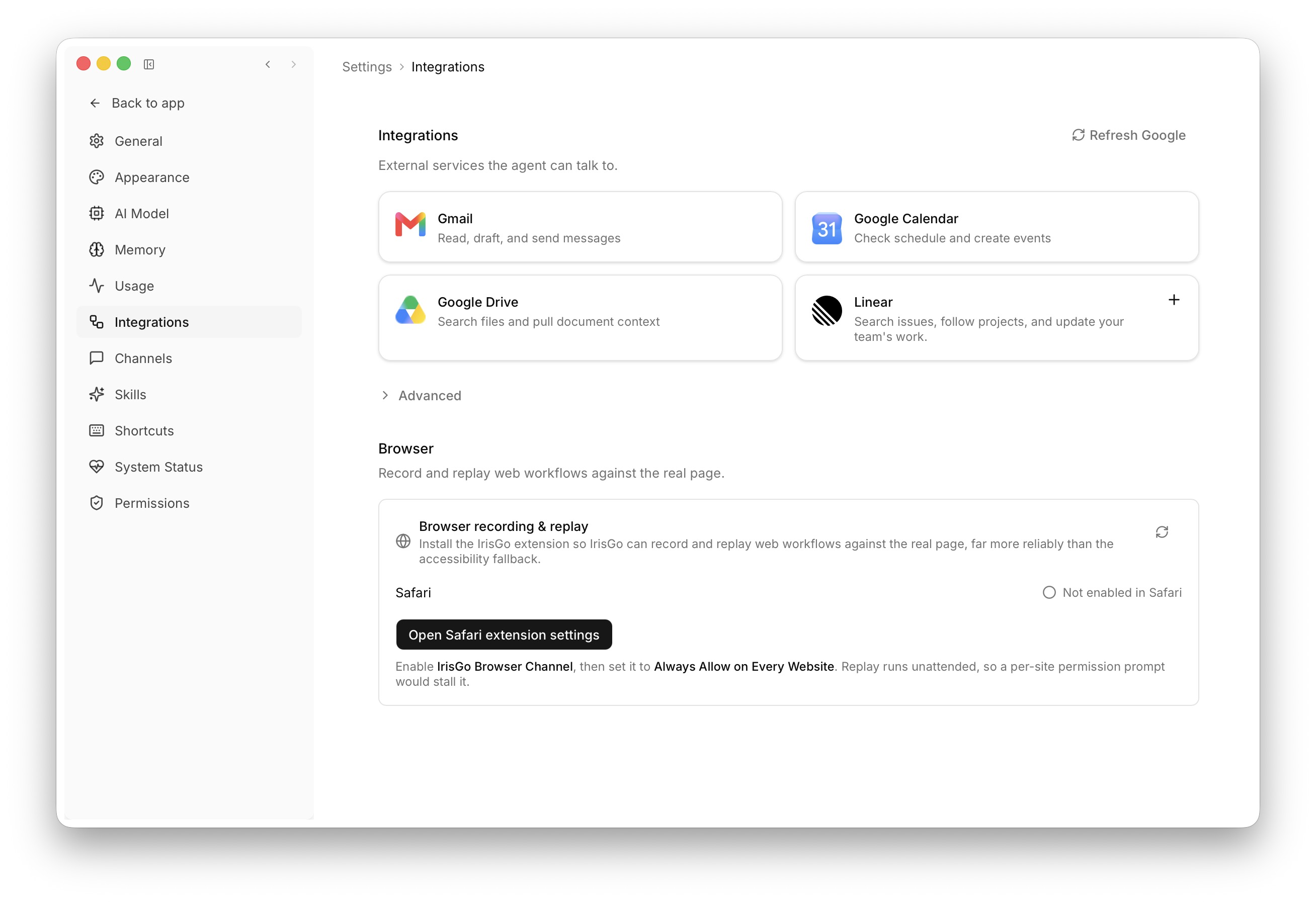
Step 3: Choose the Google services you want to connect
Click on the integration you want to connect. IrisGo will open Google's sign-in page, where you can select and authorize access on the account you want to connect to.
Important: Repeat this step for each Google service you want to authorize. If you skip a required permission, that service may not work. Return to Integrations and reconnect it if needed.
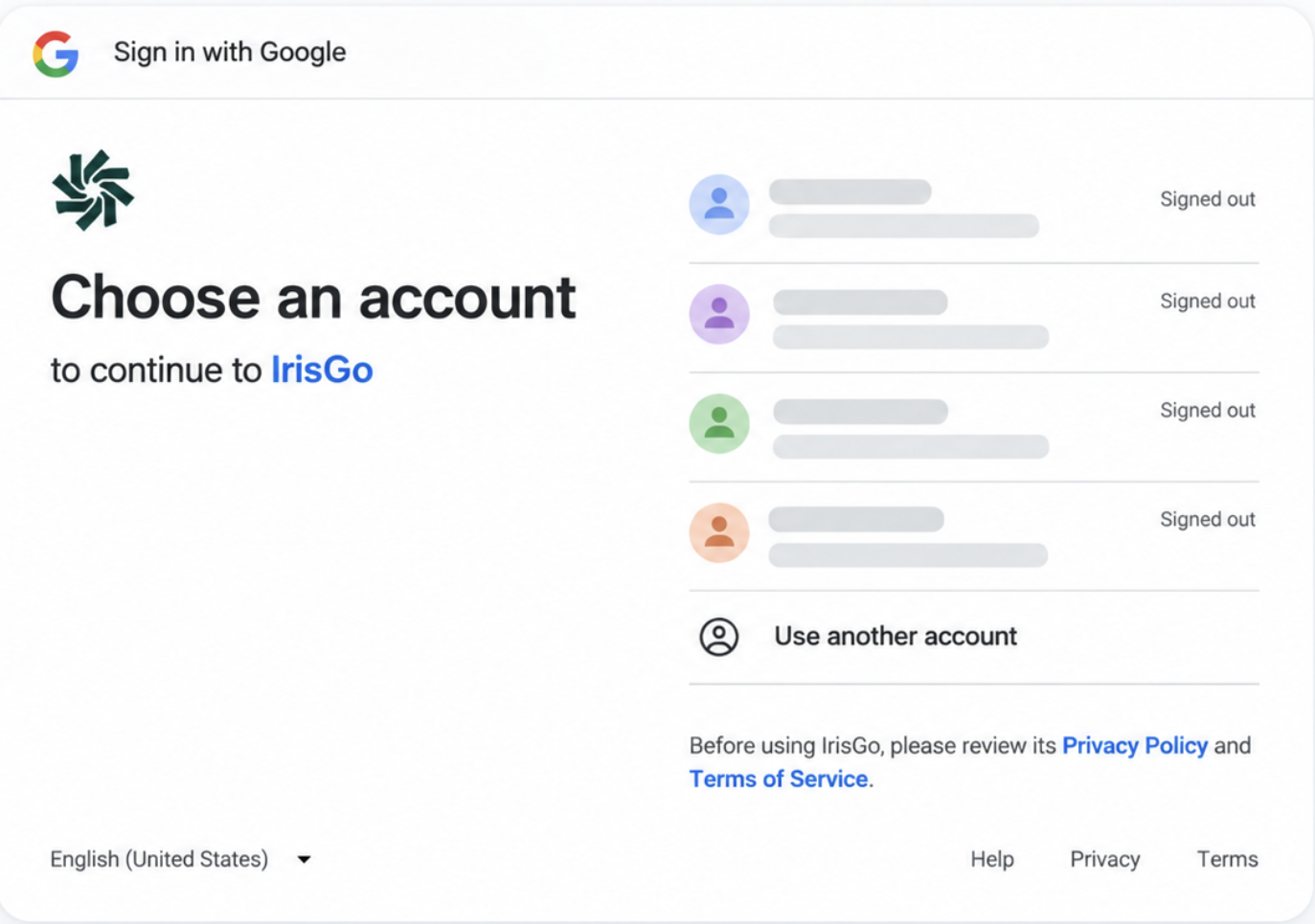
Step 4: Check the connection status
After authorization, return to IrisGo. A green status indicator should appear next to each Google Workspace service you approved, confirming that the connection is active. Then go back to the IrisGo homepage and check that the connected account is available before running a test.
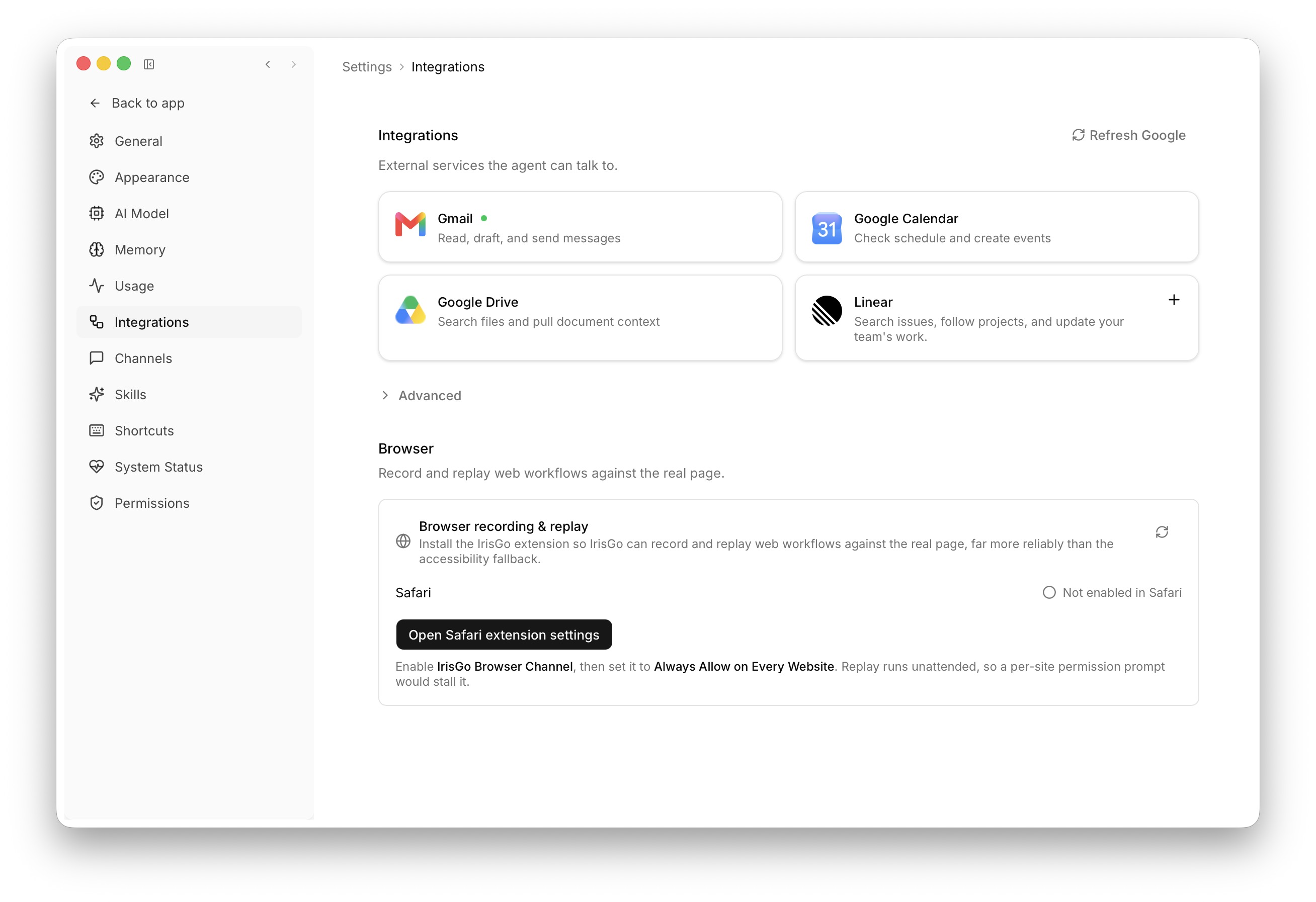
Step 5: Run a quick test
Ask about something easy to verify the integration, such as:
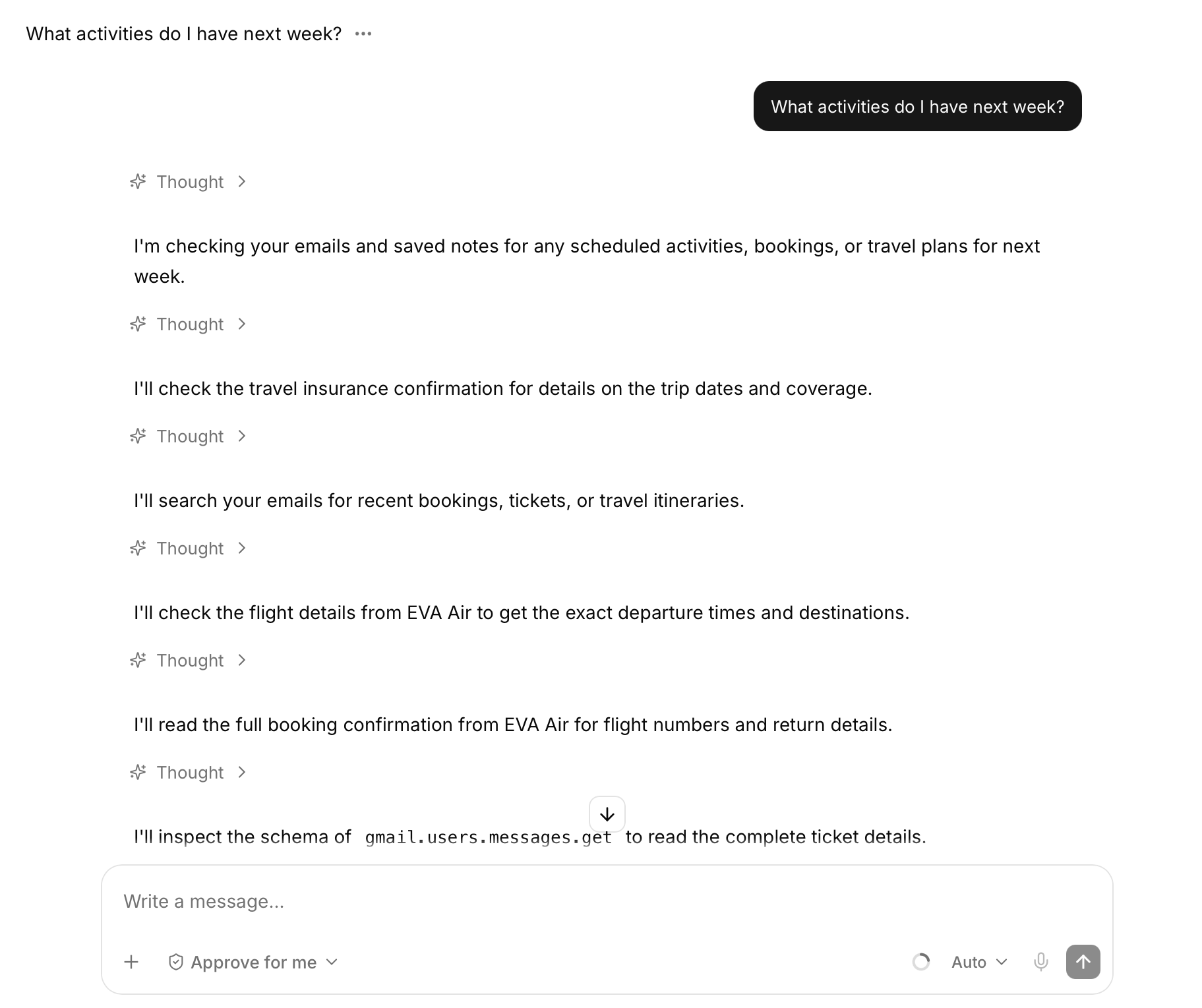
"What meetings do I have this week?"
"Show me emails I received in the last 24 hours that require immediate action."
"Show me any outstanding comments in my Google Docs."
Check the answer against your Google account to confirm that the connection is working.
| Application | Best for | Try asking |
|---|---|---|
| Gmail | Summarizing messages and pulling out action items, dates, and open questions | "Show project emails from this week." "Which conversations still need a reply?" |
| Google Drive | Finding files by subject, project, or approximate date | "Find the latest presentation for the September content plan." |
| Google Calendar | Looking ahead and preparing for meetings | "What's on tomorrow?" "Do any of my events overlap?" |
Gmail
Best for
Summarizing messages and pulling out action items, dates, and open questions
Try asking
"Show project emails from this week."
"Which conversations still need a reply?"
Google Drive
Best for
Finding files by subject, project, or approximate date
Try asking
"Find the latest presentation for the September content plan."
Google Calendar
Best for
Looking ahead and preparing for meetings
Try asking
"What's on tomorrow?"
"Do any of my events overlap?"
Tips for better results
Using Gmail with IrisGo
Include a time range, sender, or topic in your request. Instead of scrolling through every unread message, ask for project emails received this week or conversations that still need a reply.
IrisGo can then summarize the relevant messages and draw out action items, dates, and unanswered questions. You spend less time sorting the inbox and more time deciding what to do next.
Finding files in Google Drive
File names are easy to forget. Describe what you remember, such as the project, subject, or approximate date, instead of relying on the exact title. After IrisGo locates the file, you can ask for a summary or use it as context for your next task.
Checking Google Calendar
Calendar access makes it easier to look ahead without leaving the conversation. Start with an upcoming meeting and ask IrisGo to find related emails and documents, so you join the conversation with the background information already gathered.
When all three services work together
The connection becomes more useful when a task crosses app boundaries.
Example: An Asana notification in Gmail says a blog article is due soon. The draft is stored in Google Drive, and the next team meeting is already on Google Calendar. IrisGo can trace the task from the notification to the document and then check when the team will discuss it.
The example workflow automation would look like this:
- ●Find the Asana notification in Gmail.
- ●Pull out the task, due date, and mentions.
- ●Locate the related document in Google Drive.
- ●Check Google Calendar to see when the next relevant meeting is scheduled.
- ●Summarize what is ready and what still needs attention.
Each service still has a distinct role, but you no longer have to piece the context together yourself.
Troubleshooting: Common connection issues
IrisGo cannot find the right item
Confirm that the email, file, or event belongs to the connected account. Then add details such as the sender's name, part of the title, or an approximate date to narrow the results.
Google asks you to reconnect
Authorization may have expired, or the original setup may be missing a required permission. Open Settings → Integrations and reconnect the affected application.
A managed account is blocked
Schools and companies may limit third-party integrations. If authorization is unavailable, contact your Google Workspace administrator.
A new or renamed file does not appear
Check that the file is in the connected account and that its sharing settings allow access. For a recent upload or name change, wait a couple minutes, then search again using the current title.
Access and privacy
IrisGo works only within the access you grant during Google authorization. Review permissions carefully, especially when the account contains company, school, or other sensitive information.
Check the details yourself before important actions, such as sending an email or changing an event. IrisGo makes information easier to find and use, while the final decision remains yours. Learn more about our privacy policy here.
How to disconnect Google
Choose either option:
- ●IrisGo app: Open Settings → Integrations in the IrisGo desktop app, select the connected Google service, and choose the option to disconnect it.
- ●Google browser: Revoke access in the third-party access settings of your Google Account. This is useful when switching accounts or when IrisGo should no longer access these services.
Get started with one connected task
You do not need to redesign your entire routine on the first day. Begin with a task you already repeat, such as checking tomorrow's meetings, reviewing unread project emails, or finding the latest version of a file.
Connect Google Workspace, try that task in IrisGo, and build from there. Try IrisGo for free.
— Nagesh Pobbathi
Head of Product, IrisGo
More from Guides & Ideas
Opens in a new tabBefore We Wrap Up: IrisGo Marketing Internship 2026
Our 5 summer marketing interns share the projects, surprises, and lessons that shaped their internship at IrisGo.
TipsFreelancing in 2026: From Solo Work to AI-Powered Workflows
The future of freelancing is here. Explore five trends for solopreneurs in 2026, from AI-powered workflows and outcome-based work to privacy and human control.
ExplainersThe Anti-Prompting Cheat Sheet
Stop managing tools and start automating the grind. Discover 5 ways a hybrid, context-aware AI Operating System eliminates friction.